A guide to adding notes to a PDF file
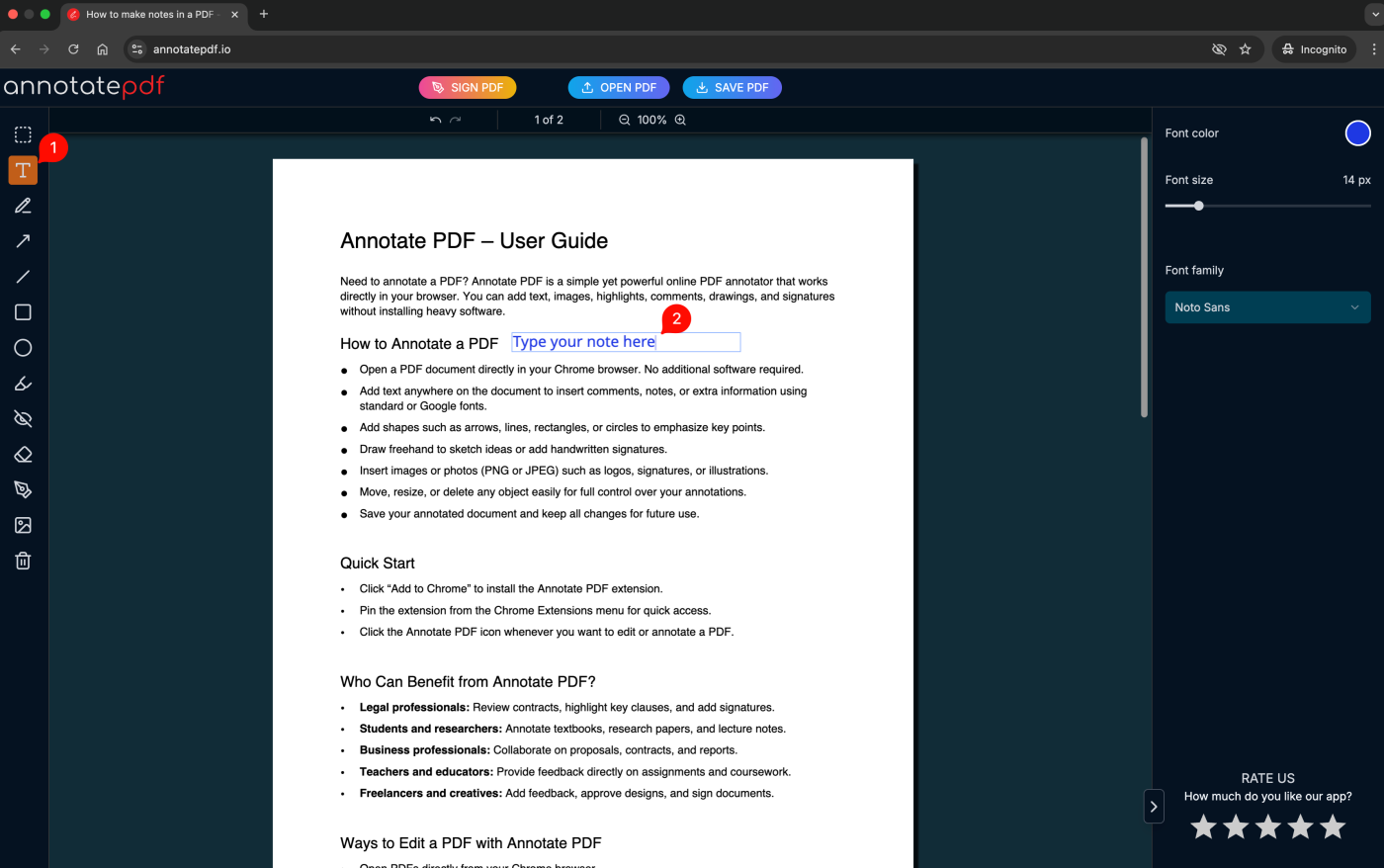
After uploading a PDF document to Annotate PDF, you can make notes anywhere in the document. To do this:
1. Select the Text tool (font icon) on the left panel.
2. Click on the page where you want to add a note → a text input field will appear.
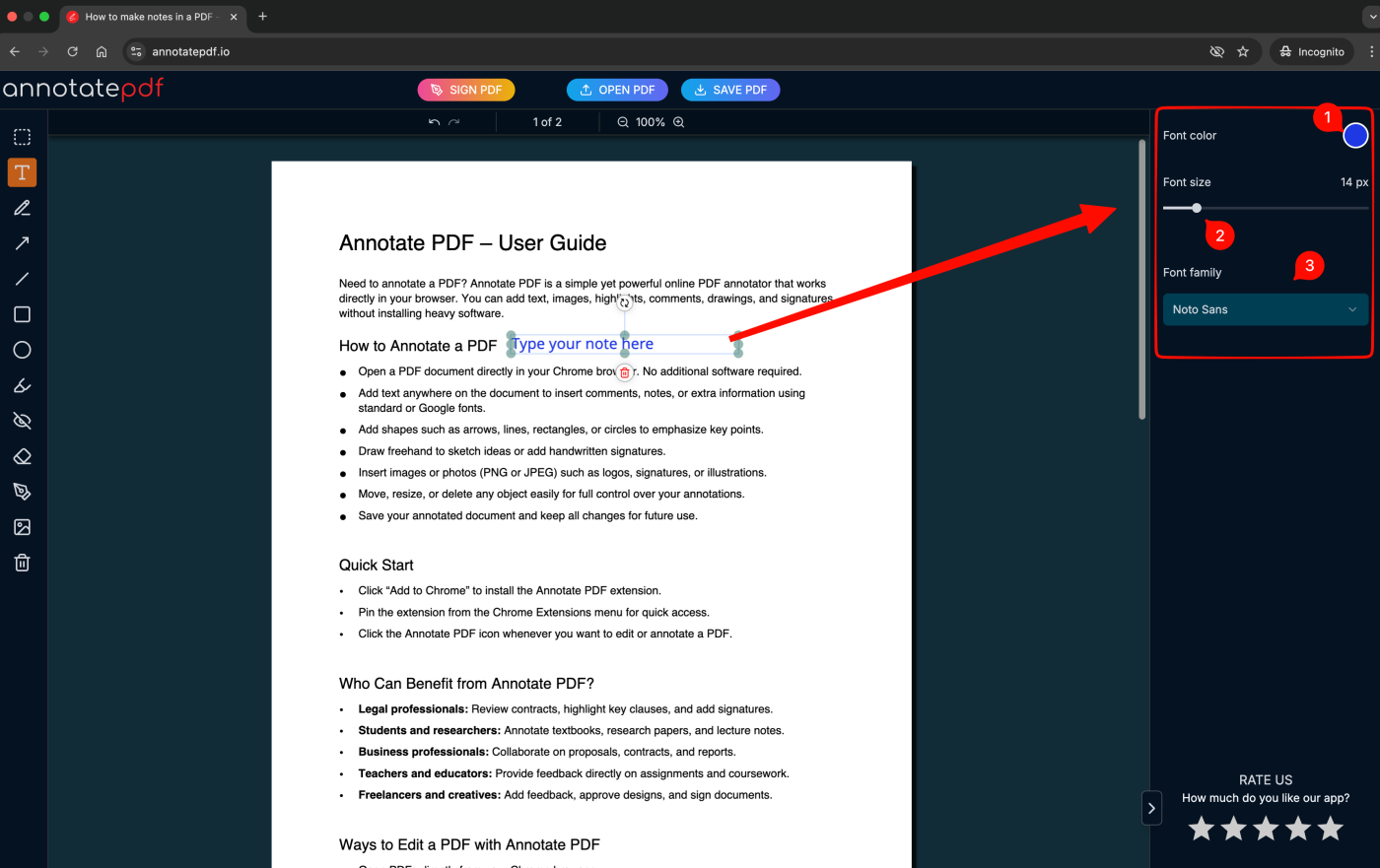
On the right panel, you can adjust the text styles:
- Font color
- Font size
- Font type
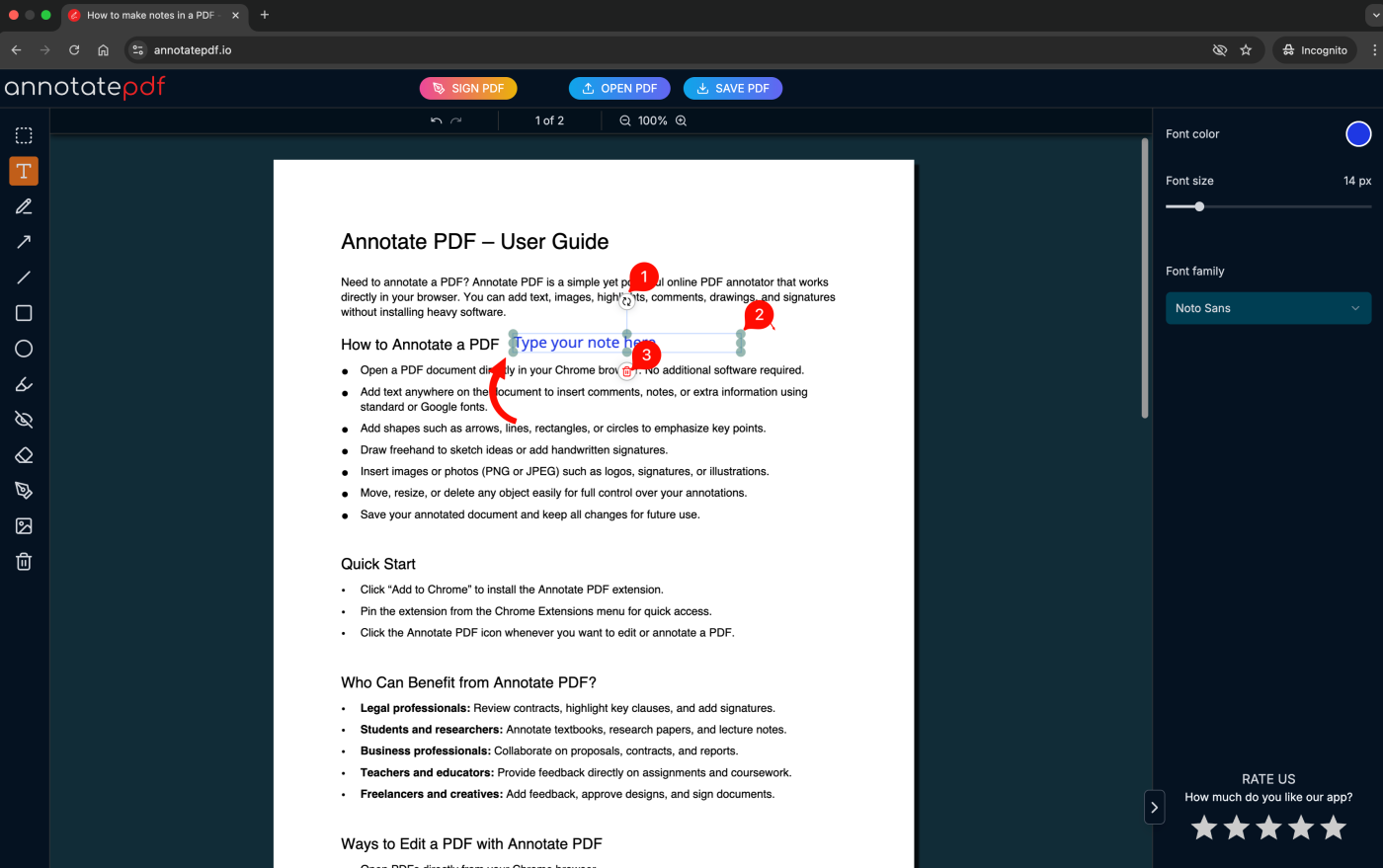
To move or resize a text element, click on an empty area outside the element, then click on it again — control handles will appear:
- You can rotate the element
- Resize the element
- Delete the text element