
How to annotate a PDF file
Use an online service to conveniently annotate PDF files directly in your browser, without installing any additional software.
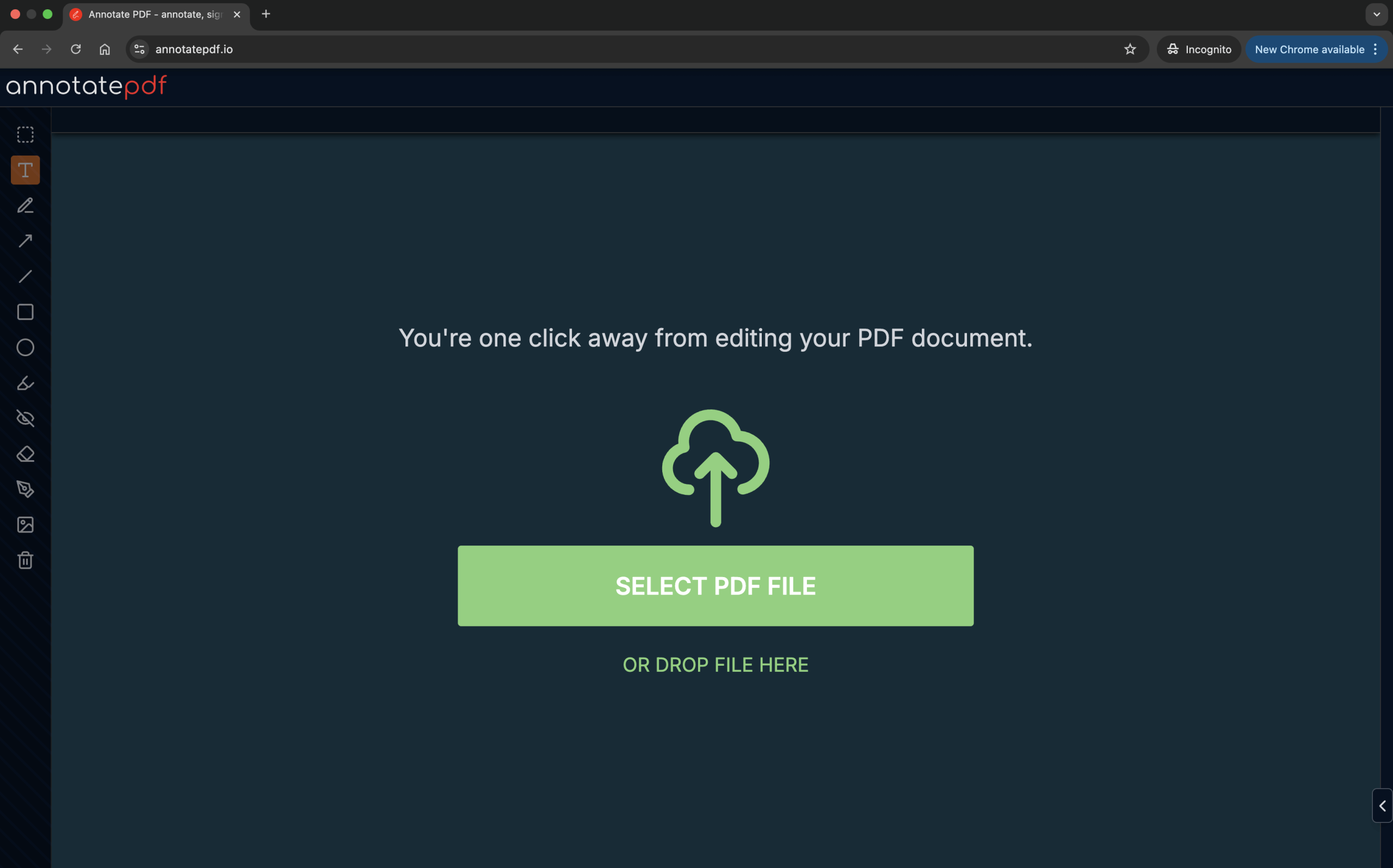
How to use it
Simply upload the PDF document from your device. To do this, click SELECT PDF FILE or drag and drop a file (.pdf) into the upload area.
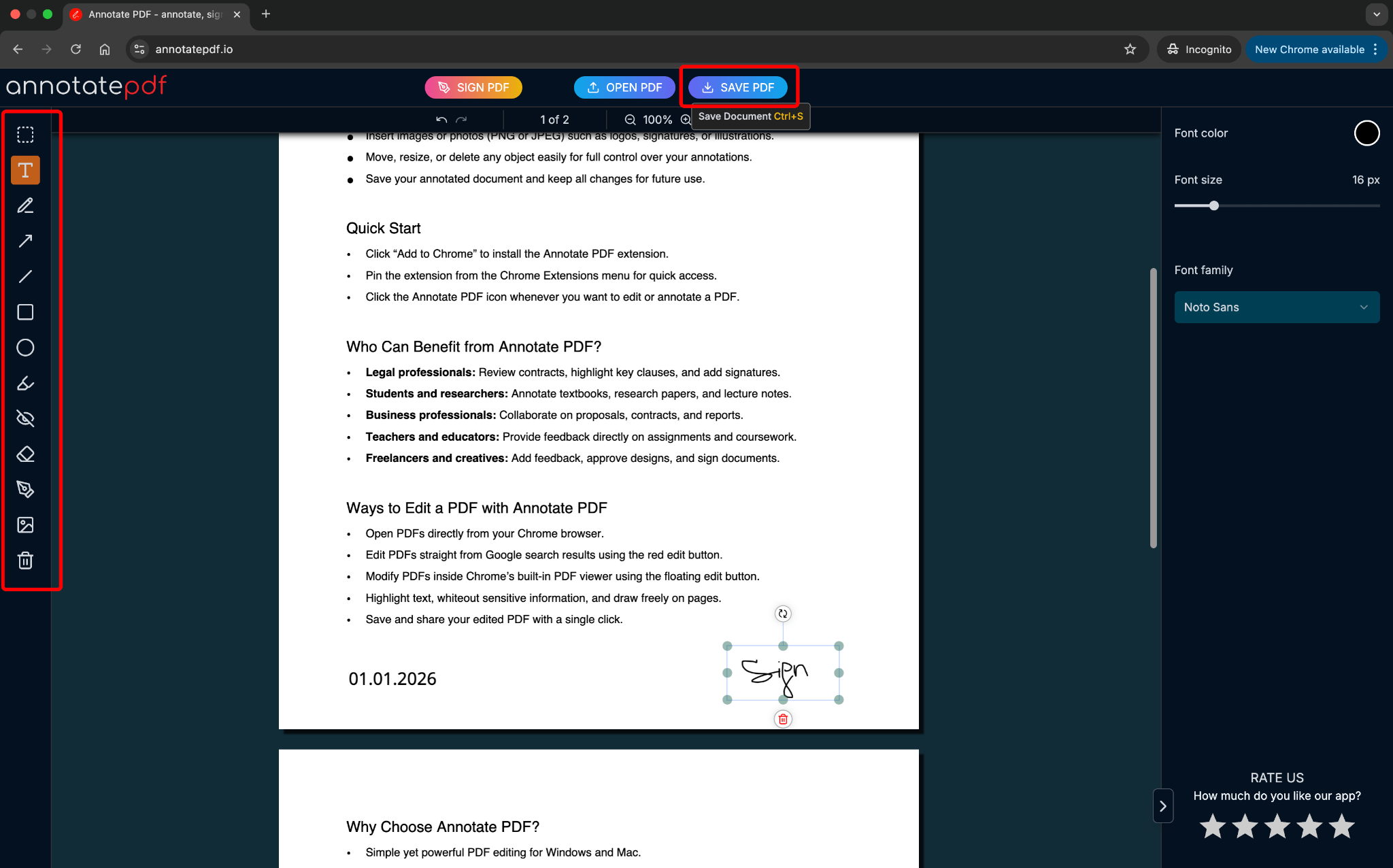
Add the necessary notes and download the PDF with your annotations.
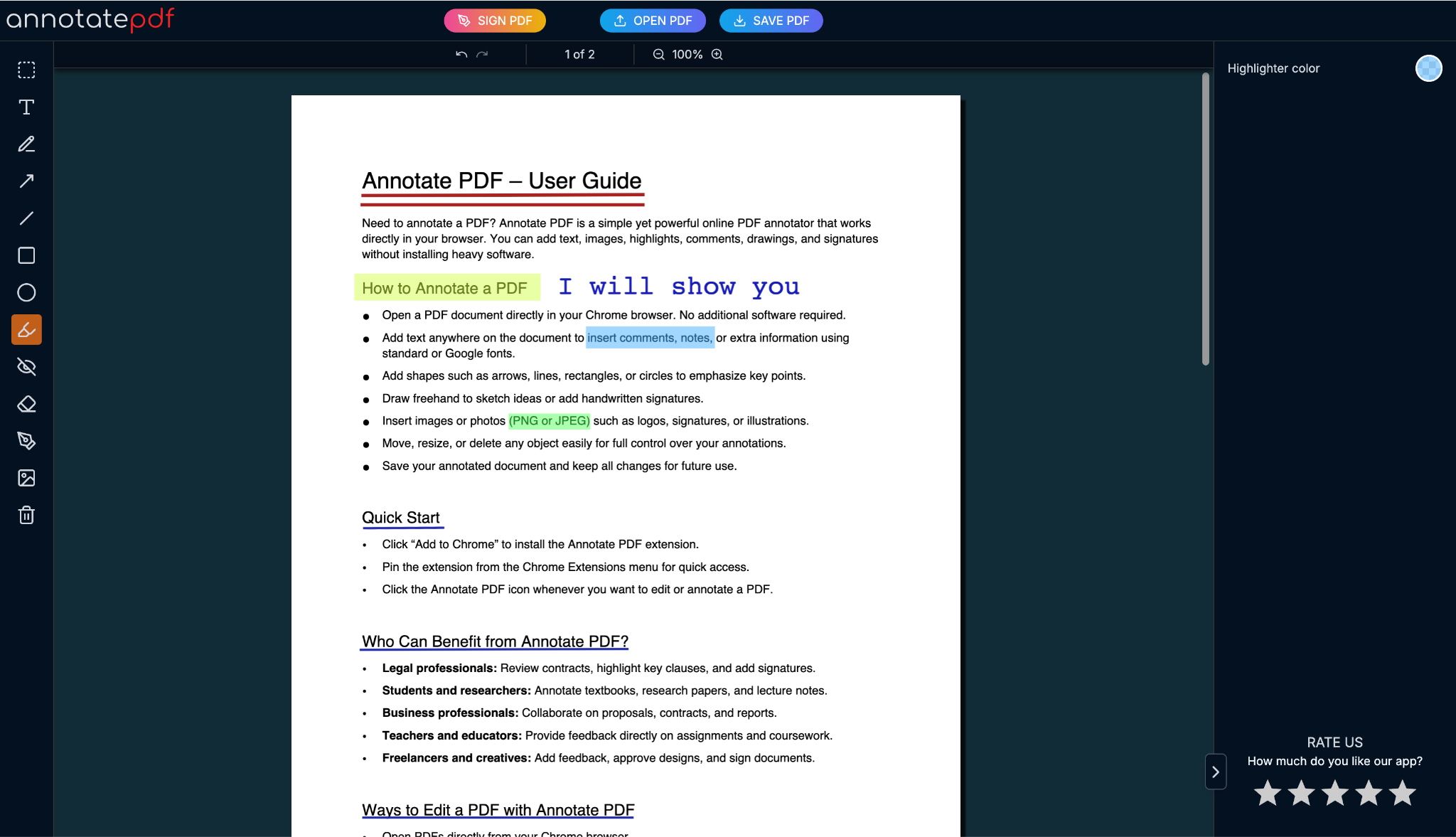
Available features
Annotate PDF offers more than 10 tools that help you add any kind of annotation to your files. Let’s go through them one by one:
Add text
You can add any text to a PDF document.
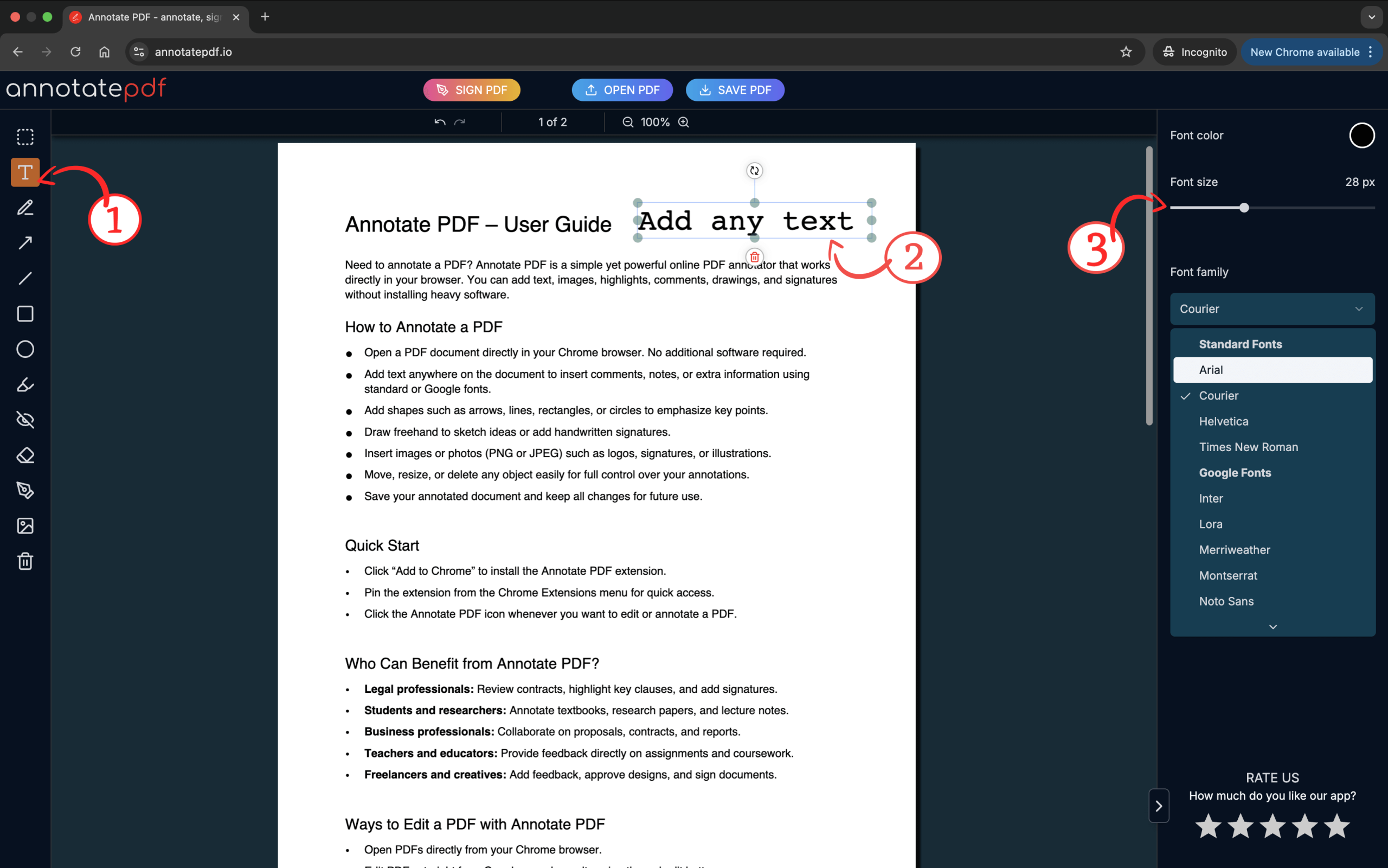
- Select the text tool from the toolbar on the left.
- Click on the document where you want to place your text. While the text is active, you can type, rotate, move it, or delete it if needed.
- You can choose the color, size, and font type from the right-hand toolbar.
Use this to add comments or notes to a PDF file.
Freehand drawing
If you need to draw handwritten notes:
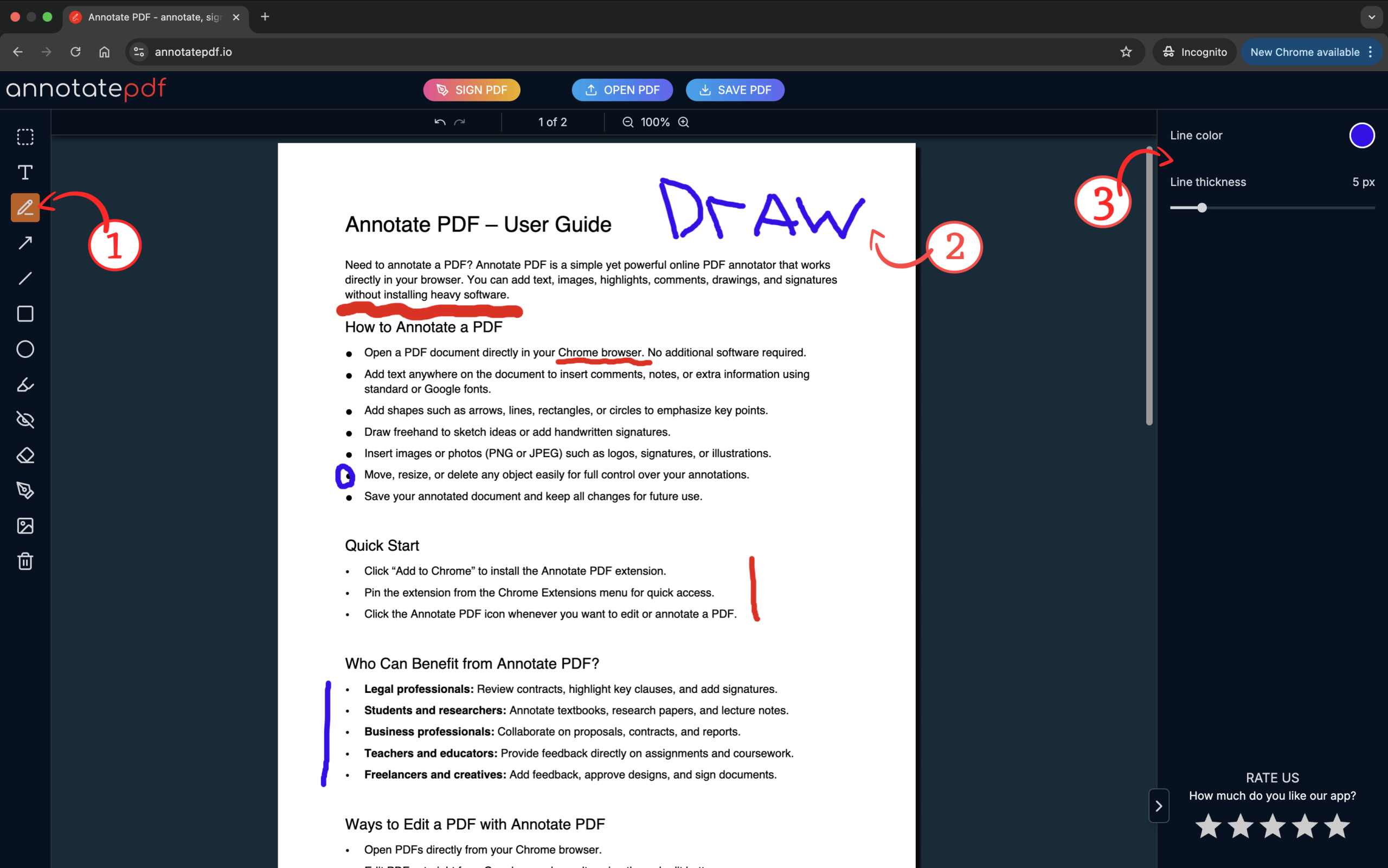
- Select the Draw tool.
- Click and move the cursor across the page to draw.
- After finishing, you can move or delete the drawing.
Perfect for signatures and handwritten notes.
Add shapes
To visually highlight parts of a PDF:
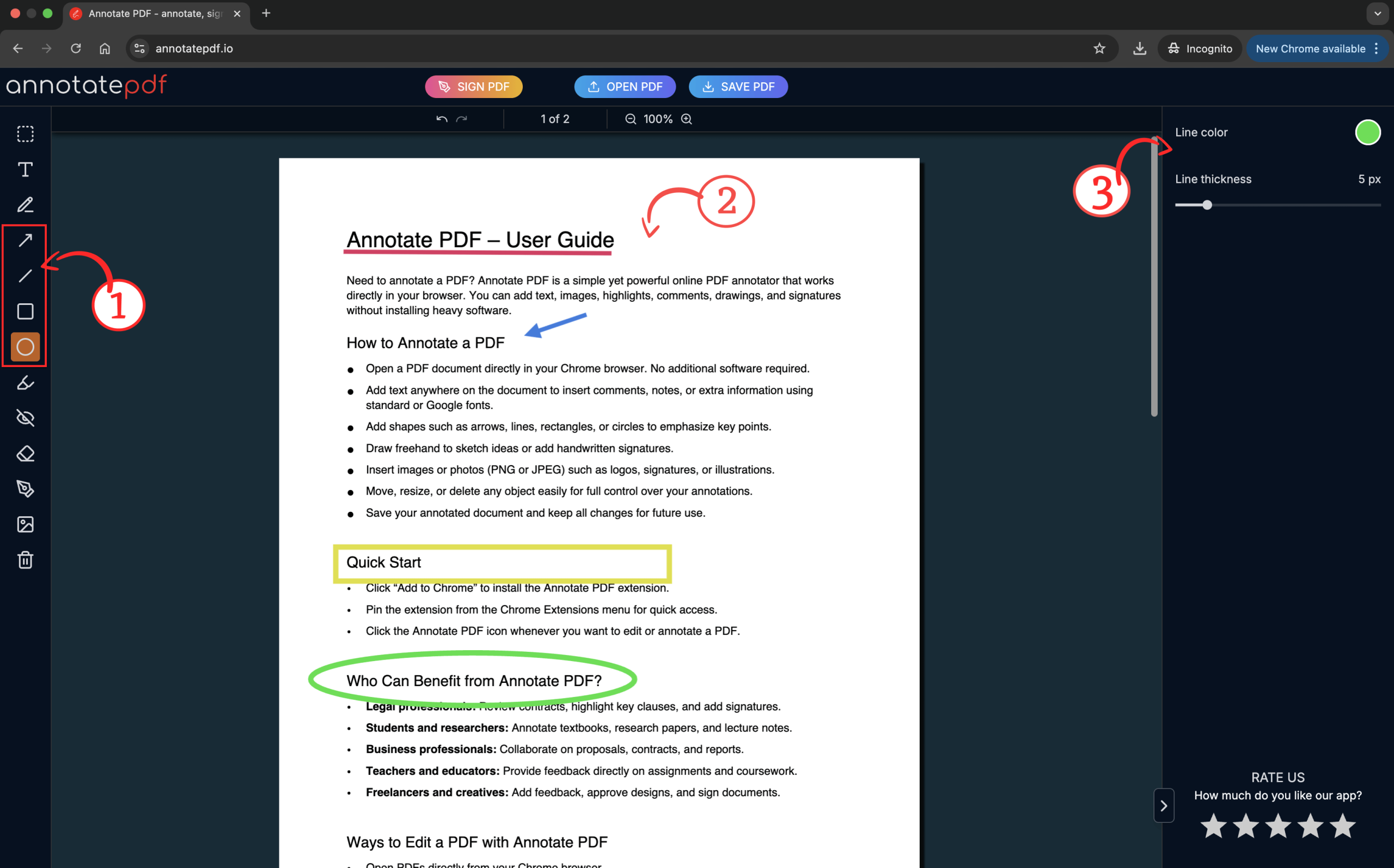
- Choose a shape from the toolbar (for example: arrow, line, rectangle, circle).
- Click and drag to create the shape in the desired place.
- You can change the size, color, and position after adding it.
Useful for diagrams, directions, or highlighting graphics.
Highlighting and annotations
To highlight important parts or add comments:
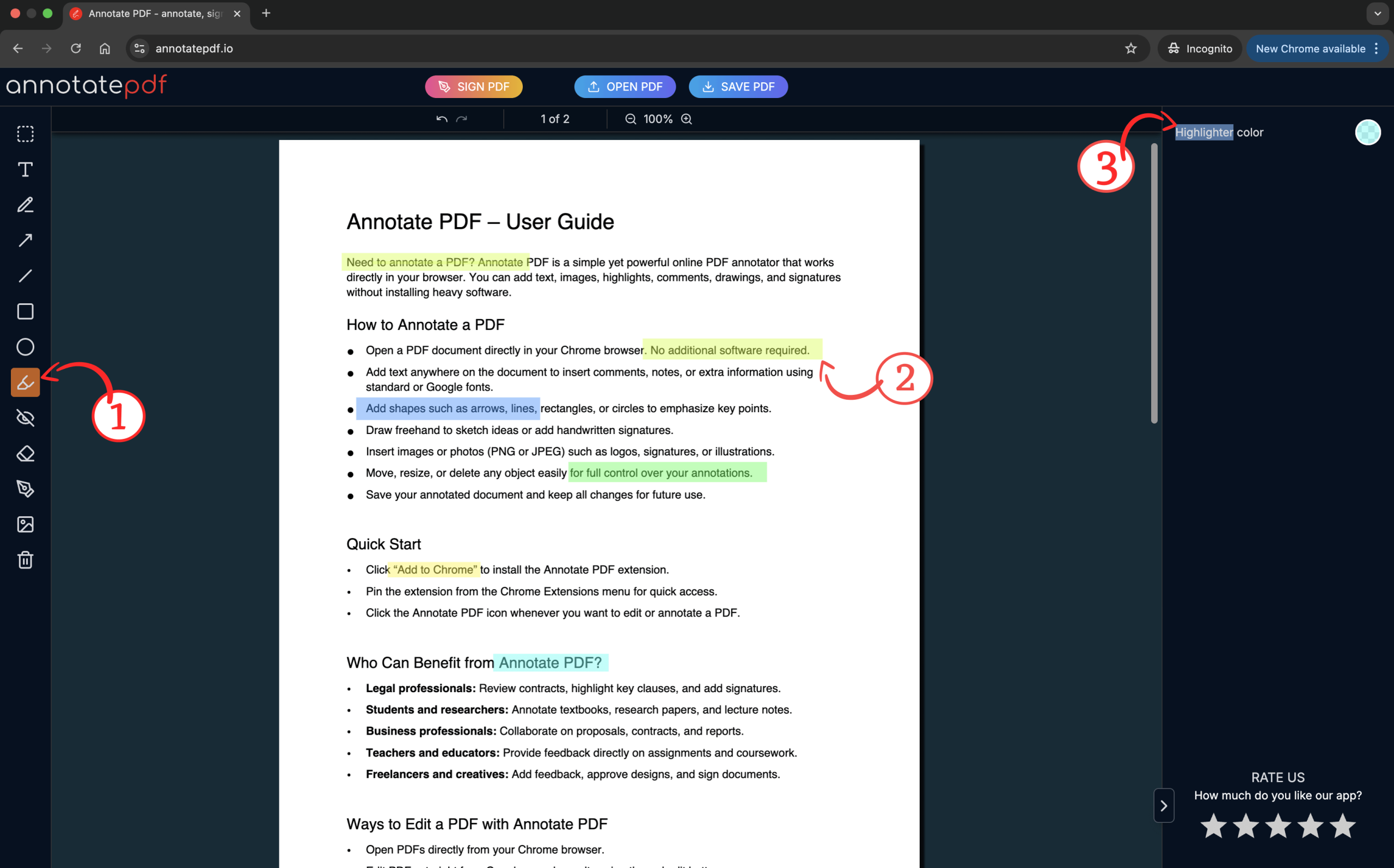
- Select the Highlight tool.
- Click and drag the mouse over the text you want to highlight.
- You can change the highlight color.
Helps make the document clearer for you or others.
Hide sensitive information
If you need to hide part of the text or data:
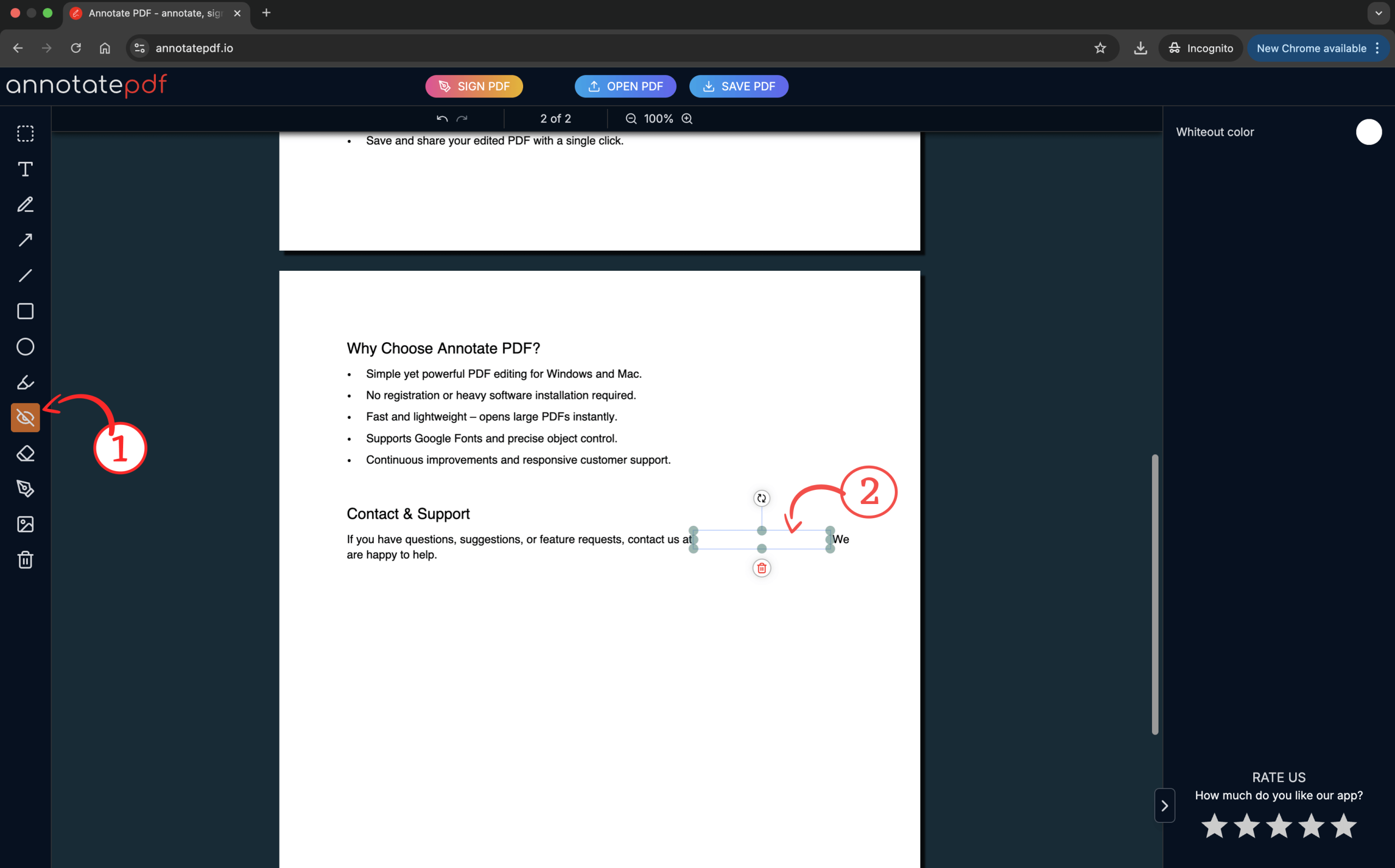
- Select the Whiteout tool.
- Click and highlight the area you want to hide.
Useful for covering personal or confidential data before sharing.
10. Eraser
A tool for removing added elements:
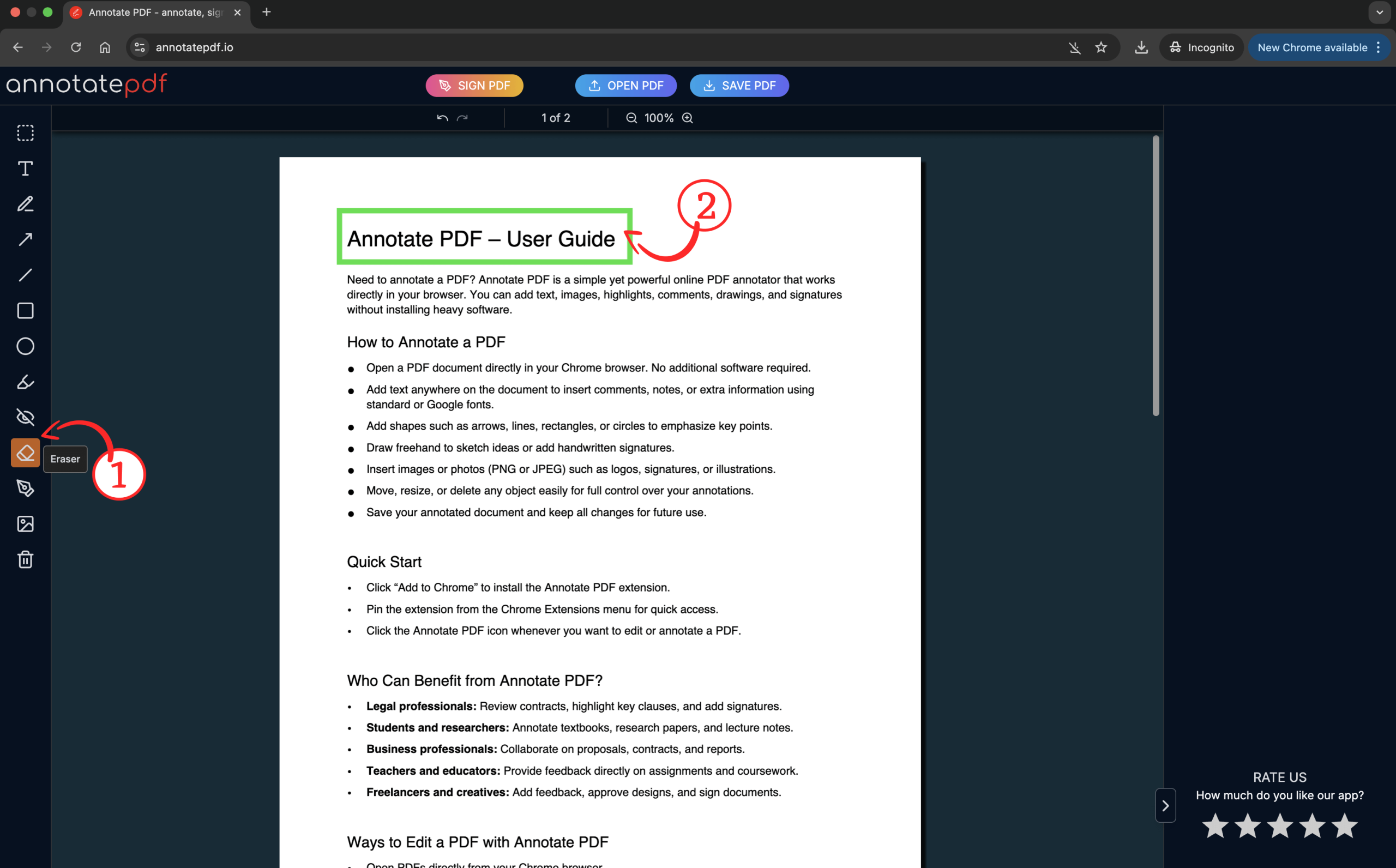
- Select the Eraser tool from the left panel.
- Click on the object (text, shape, drawing, annotation) you want to remove.
- The element will be deleted immediately after clicking.
The eraser removes only added elements; the original PDF remains unchanged.
11. Signature
Allows you to sign documents directly in the browser:
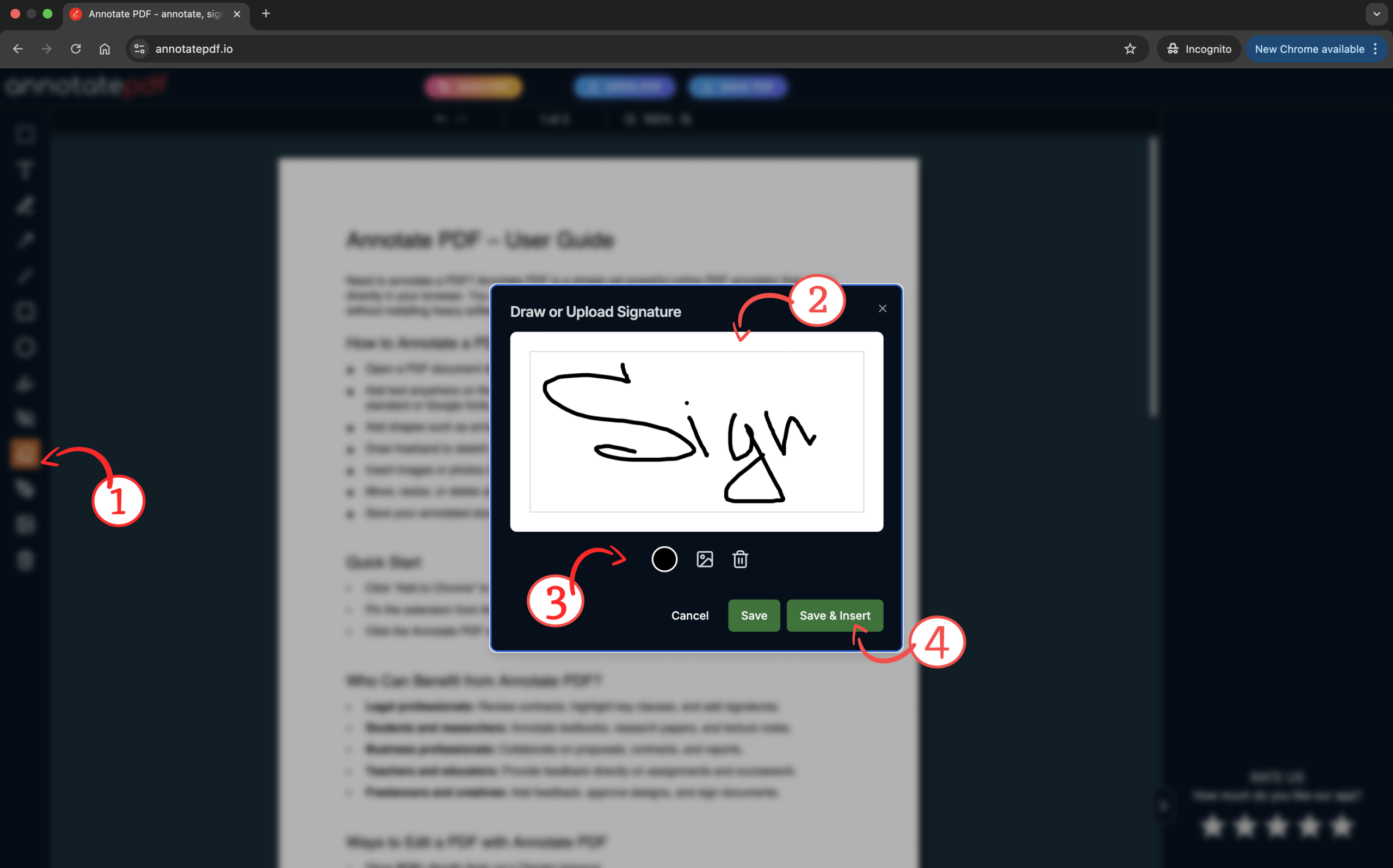
- Select the Signature tool.
- Draw your signature using a mouse or trackpad in the popup window.
- Choose the signature color, upload your own, or clear the input field.
- Click Save and Insert to place the signature in the document.
- Move the signature to the desired location and resize it.
- Your signature will be saved in the right panel — click it to edit.
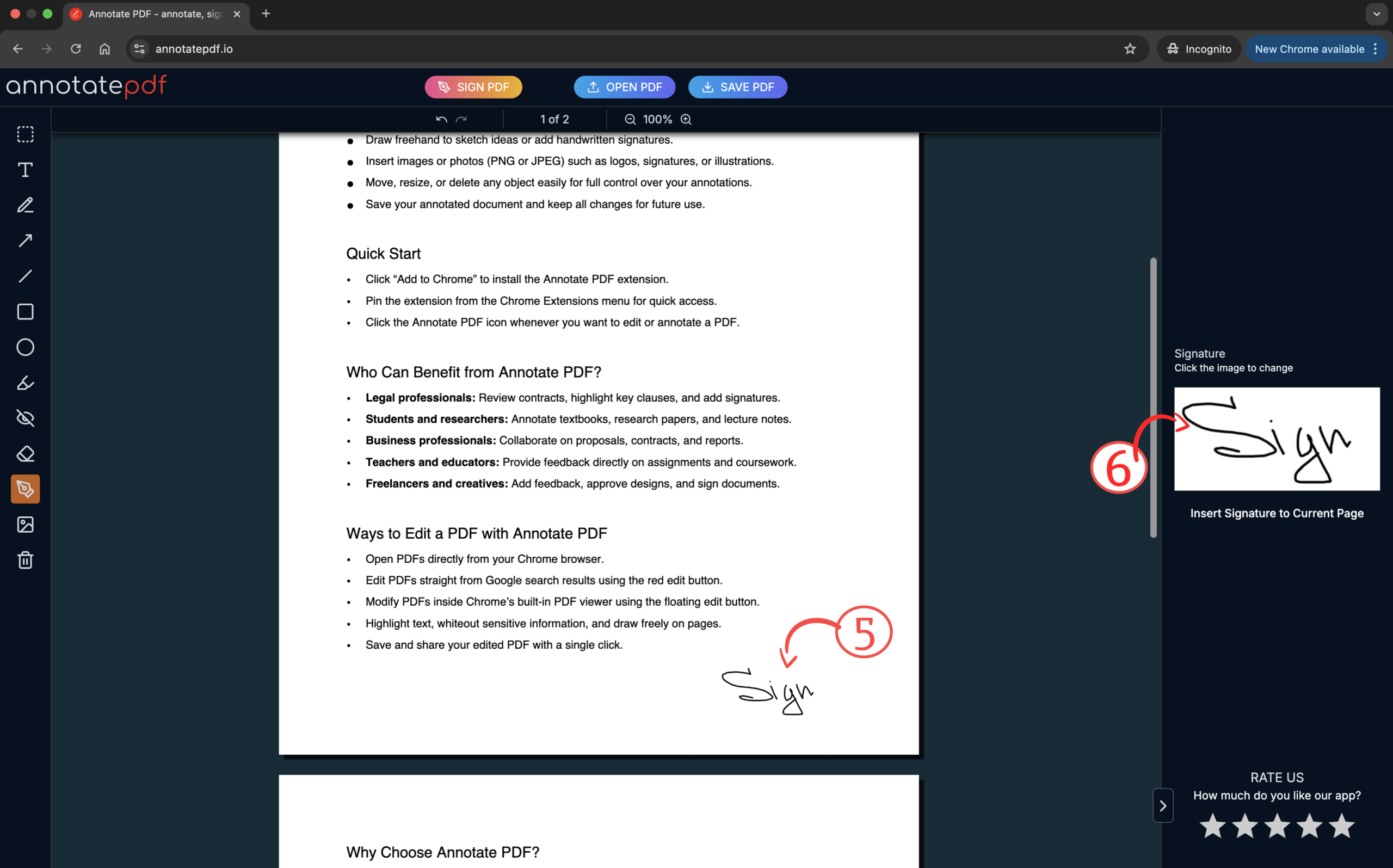
Perfect for contracts, forms, and official documents.
Insert images
To add a logo, stamp, graphic, or photo:
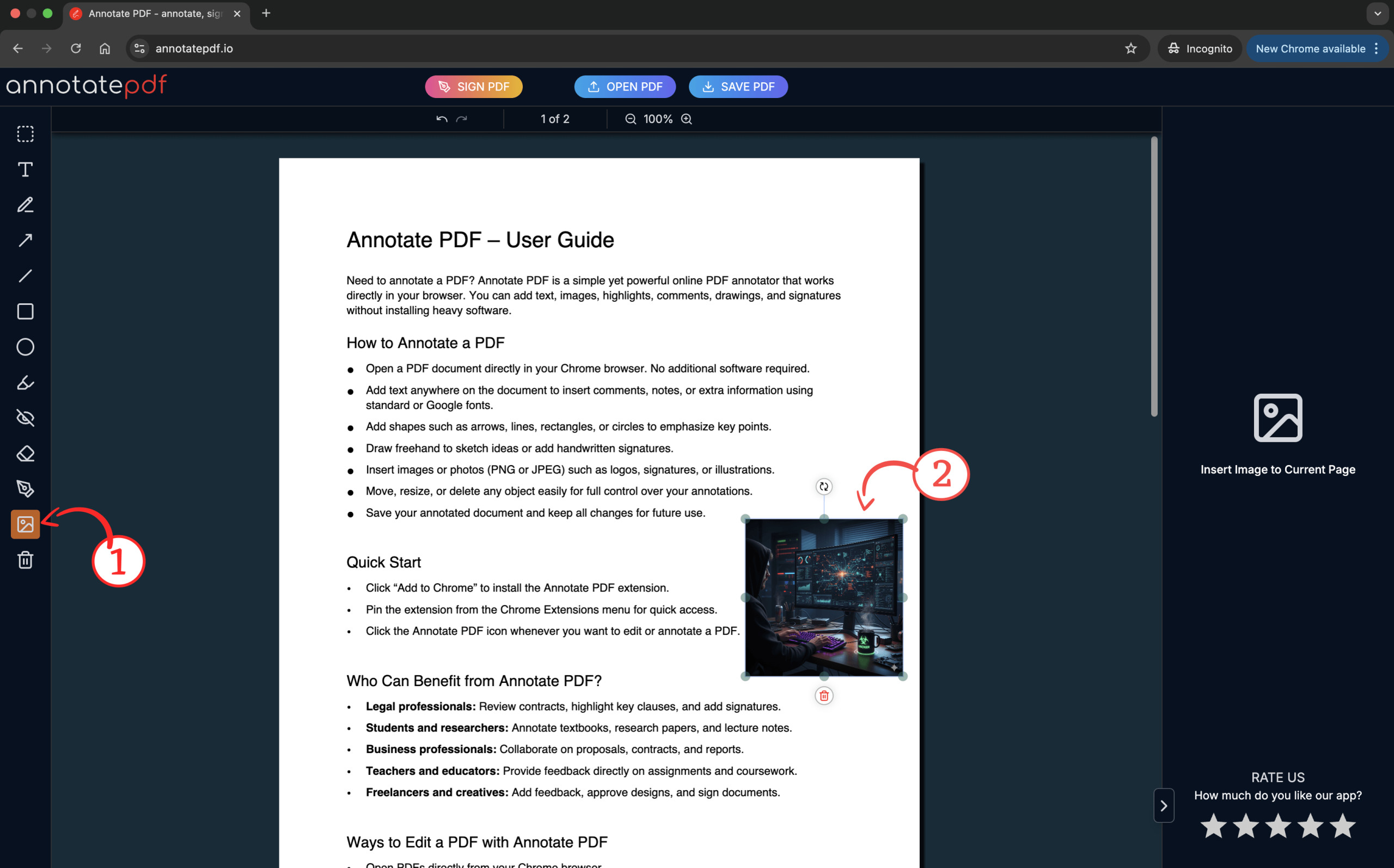
- Select Image from the toolbar.
- Upload an image in PNG or JPEG format.
- Place the image where needed and resize it.
Useful for visual elements or stamps.
Object management
After adding any object (text, shape, drawing):
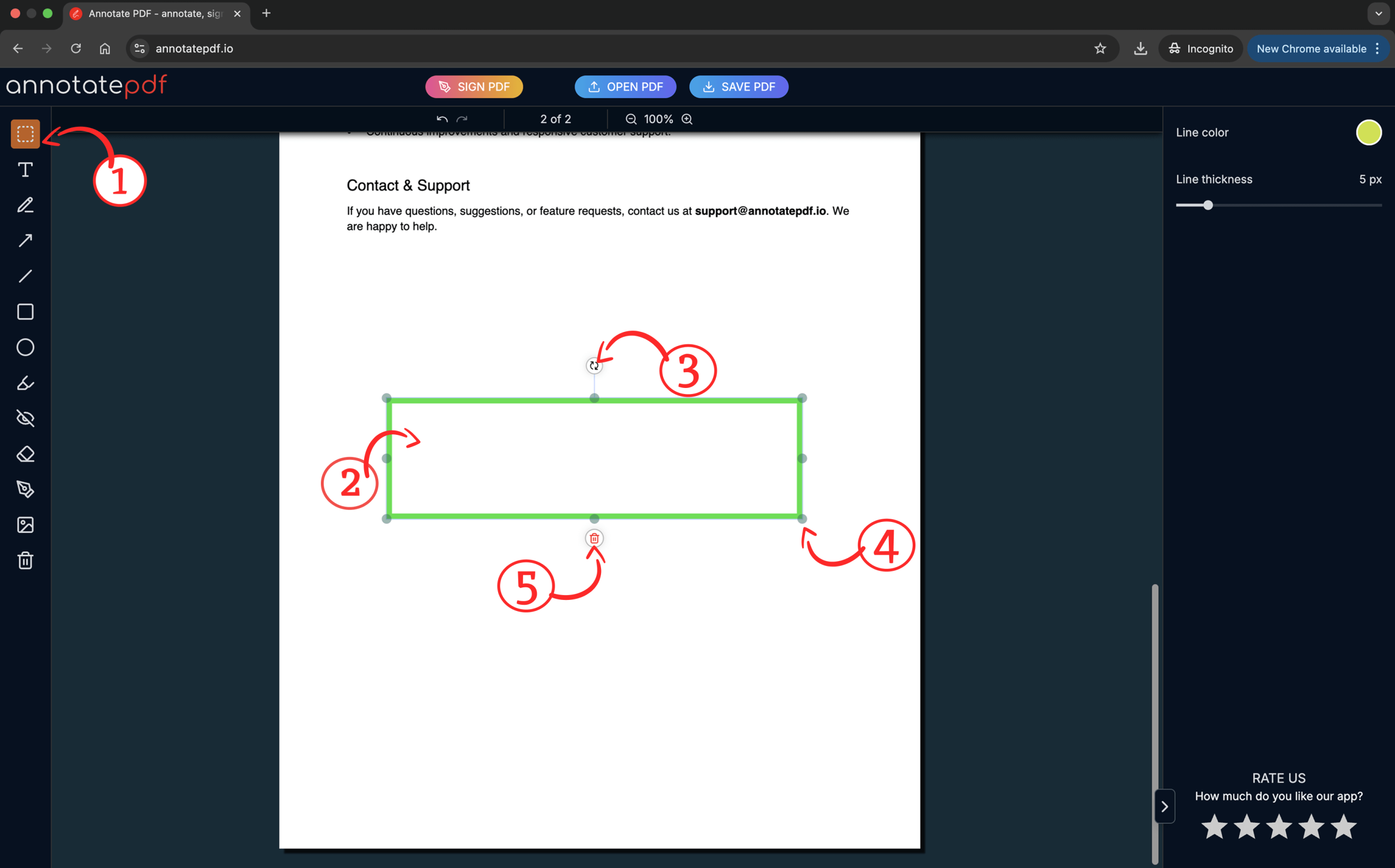
- Select the object selection tool
- Click it to select and move it.
- Change the object’s angle.
- Use the handles to resize it.
- Delete the object using the Delete button.
This gives you full control over elements in the document.
Clear all
Quickly removes all added changes:
- Click the Clear all button.
- Confirm the action by clicking Continue.
- The document will return to its original state.
All annotations, text, signatures, and drawings will be deleted permanently.
Save and export
After making all edits:
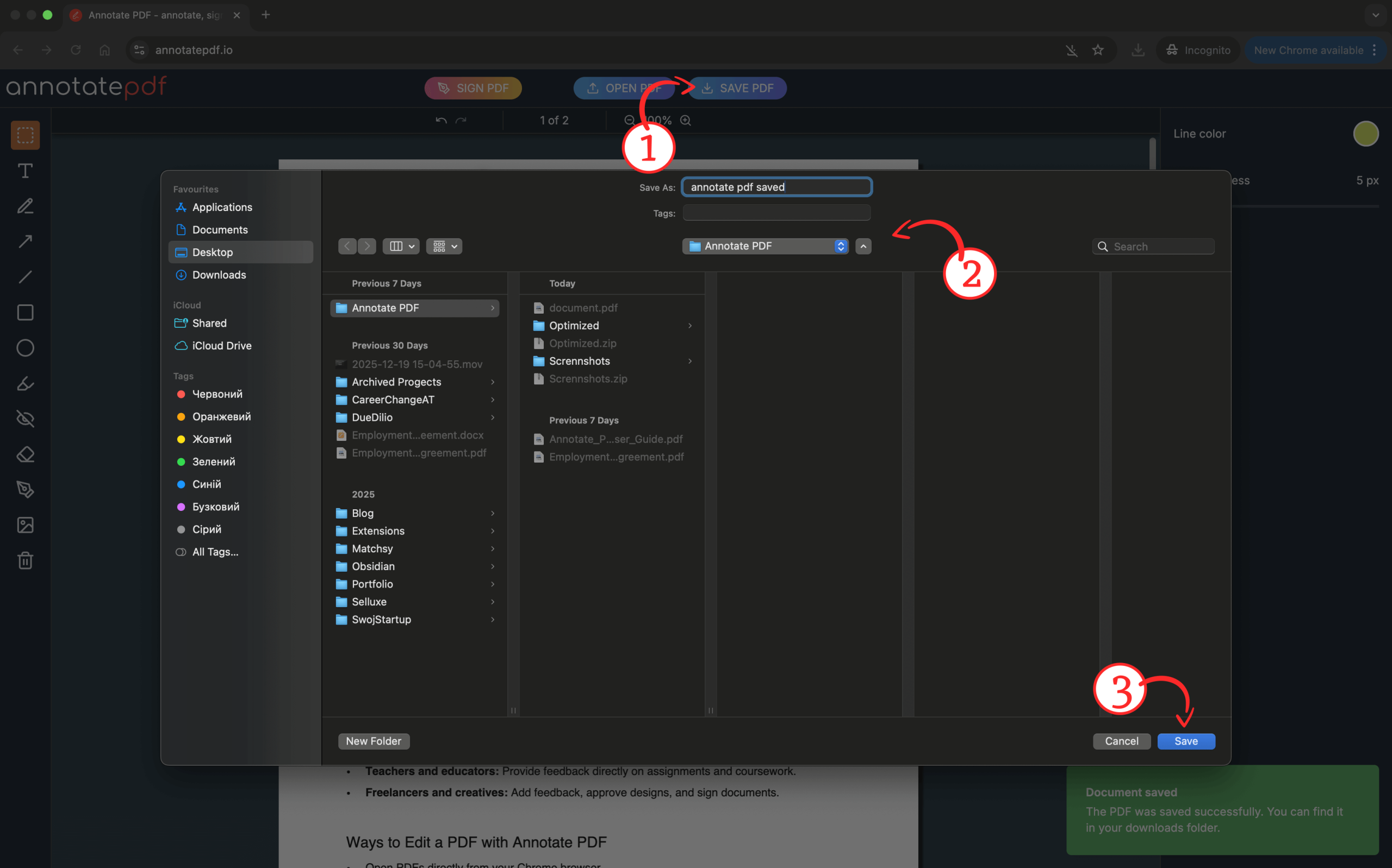
- Click the Save PDF button above the document.
- Choose a folder on your device and set a file name.
- Click Save on your device.
All changes will be saved in a new file.
Helpful tips
- Perfect for contracts, forms, instructions, and study materials
- All elements can be edited before saving the file
- It’s easier to work step by step: text → highlights → shapes
Frequently Asked Questions
- What file types does Annotate PDF support?
Annotate PDF works only with PDF files. You can upload a file of any size without limitations.
- Is Annotate PDF free?
Yes, PDF annotation is completely free and you can add an unlimited number of annotations to your file.
- Are there any file size limits?
You can upload PDFs of any size with any number of pages. Keep in mind that larger files may take longer to load.
- Can I annotate scanned PDF files?
Yes, you can upload scanned PDF files and add annotations to them.