
The fastest way to compromise the security of legal documents is to drag a client’s PDF into a web editor. Within seconds, the file leaves your device and is sent to third-party servers, passing through jurisdictions you never agreed to.
Attorney-client privilege is not a magic shield against architecture. If a platform’s design moves your evidence, contracts, or medical records beyond your device, you create a chain of custody you cannot see and may not be able to defend.
Where the Leak Begins: Understanding Server-Side PDF Processing
Most user-friendly online PDF tools are built for scale, not confidentiality.
The standard model is server-side:
The browser uploads the PDF, the service converts it (often into images for annotation), performs transformations on remote machines, stores intermediate objects, and eventually offers the final file for download.
Even if the interface feels “local,” the actual processing happens elsewhere.
Under the hood, this usually means object storage (with public or signed URLs), task queues for rasterization and OCR, CDN layers for speed, background autosave, and logs containing file names or hashes.
Temporary files may remain longer than expected, backups may duplicate them, and internal tools may expose them to people who are not your client, not your firm, and not bound by an NDA.
Simply put: a free PDF editor processes files remotely unless it was intentionally designed otherwise.
The weak points are predictable.
Upload endpoints can see the content.
Queues and job logs may reference it.
Thumbnails may be cached.
“Share” and “collaborate” features imply persistent storage.
Support requests may trigger access.
Even if vendors promise deletion, the route your documents traveled has already expanded the risk surface.
The Legal Blast Radius: Privilege, NDAs, and Exposure Scenarios
Attorney-client privilege depends on confidentiality.
If you place a third-party platform between yourself and your client, especially one that copies or processes files on its own infrastructure, you risk breaching confidentiality.
Courts and counterparties do not care that it was faster. They care whether unnecessary third parties had an opportunity to access protected content.
The logic is similar for NDAs.
NDA document security fails when confidential materials become available to entities not named in the agreement.
If a provider can technically access the content (through logs, support tools, or configuration errors), the risk belongs to you.
Many NDAs explicitly prohibit cloud storage without permission. Uploading marked materials into a convenience tool is not “incidental use,” it is disclosure to a new party.
Exposure scenarios add up.
- A routine support ticket where an employee opens a failed task;
- A CDN configuration error exposing thumbnails;
- A machine learning feature using “anonymous” files;
- Cross-border backups placing a PDF under another legal jurisdiction.
None of this is theoretical!
These are standard operational risks whenever you route confidential content through someone else’s servers.
And when a matter involves minors, medical records, or immigration files, the moral stakes go beyond compliance.
Your client trusted you with their documents, and you handed them to infrastructure built for convenience, not legal protection.
Online NDA confidentiality is only as strong as the system boundaries you actually enforce.
How to Detect Server-Side Processing in an Editor
Vendors rarely say: “we copy your files to our servers.”
You need a quick and practical way to verify whether a tool processes data locally or remotely before staff use it under deadline pressure.
Start with the browser.
Open DevTools → Network and monitor traffic while loading the editor with Wi-Fi enabled. Then switch to airplane mode and try again.
If the app does not open or the file cannot be downloaded without a network connection, it likely depends on server-side processing.
If the network log shows a large POST request to /upload or /convert when importing a PDF, that is a clear signal.
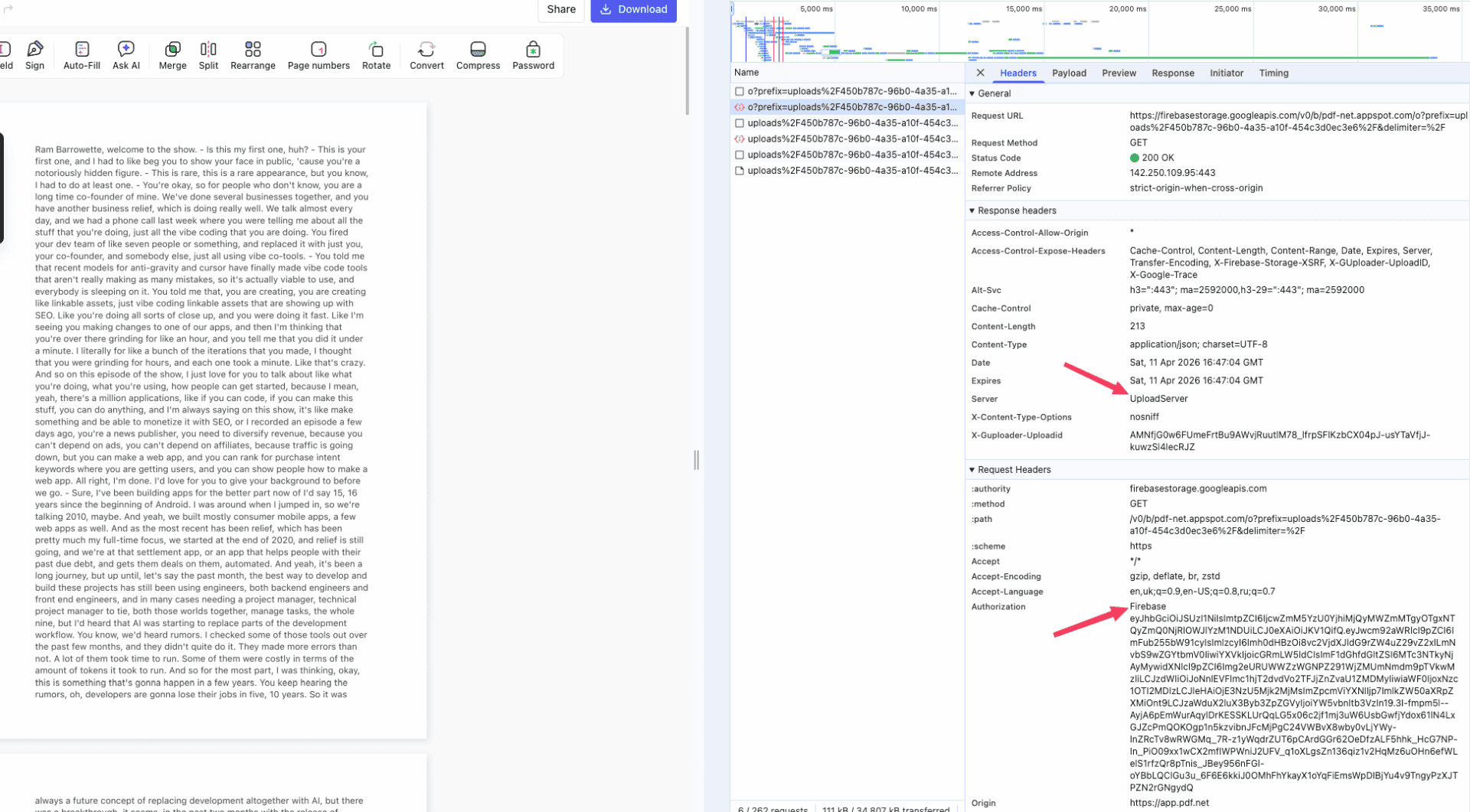
If thumbnails, pages, or edit previews load from a CDN domain, processing is not local.
Read the privacy policy and security pages.
Look for statements such as:
- “we process your documents to provide the service,”
- “we may temporarily store files,”
- “we use third-party processors,”
- “we collect usage analytics, including file metadata.”
For ordinary consumer apps this may be acceptable. For privileged legal work, it is not.
Product clues also help.
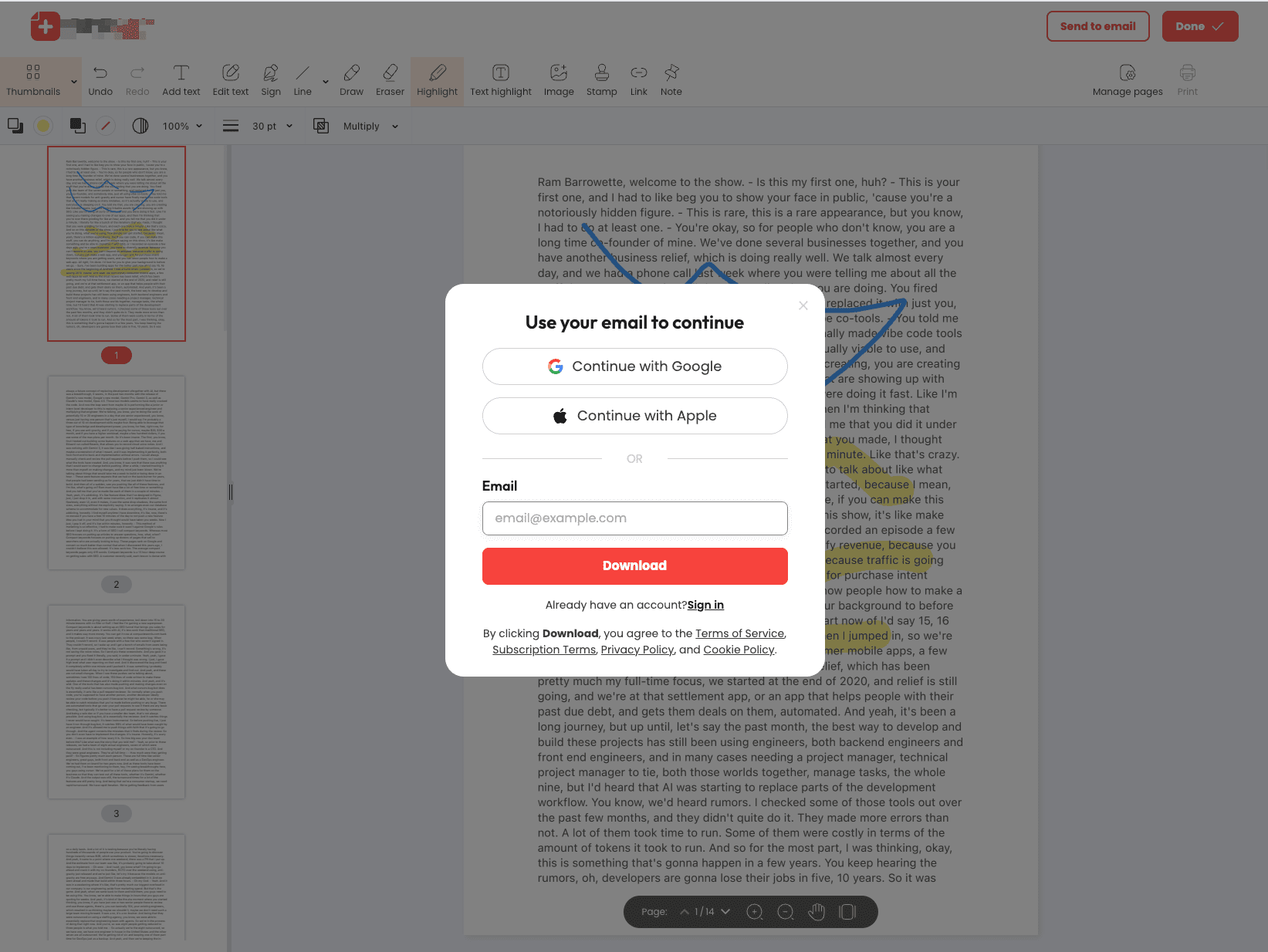
- Required signups, team access, and cloud autosave imply server-side state.
- Watermark removal “after processing,” email delivery of results, or “optimization via our servers” are signs that content leaves the device.
- If a tool is marketed as an online PDF editor but does not work offline, assume server-side processing.
If you are looking for a way to edit PDFs without uploading them, the correct answer is: “turn off the internet and it still works.”
A Safer Model: Client-Side Processing and Serverless Architecture
There is a better approach: move the code to the data, not the data to the code.
In a client-side architecture, the editor loads in the browser, and all operations such as rendering, editing, signing, flattening, and metadata removal run on your device’s CPU and memory.
No uploads. No temporary cloud storage. No CDN thumbnails.
When designed properly, the vendor’s servers only deliver static application files. Your PDFs never leave the device.
This is already reality.
Modern WebAssembly (Wasm), Service Workers, and local file system APIs make powerful offline PDF tools possible.
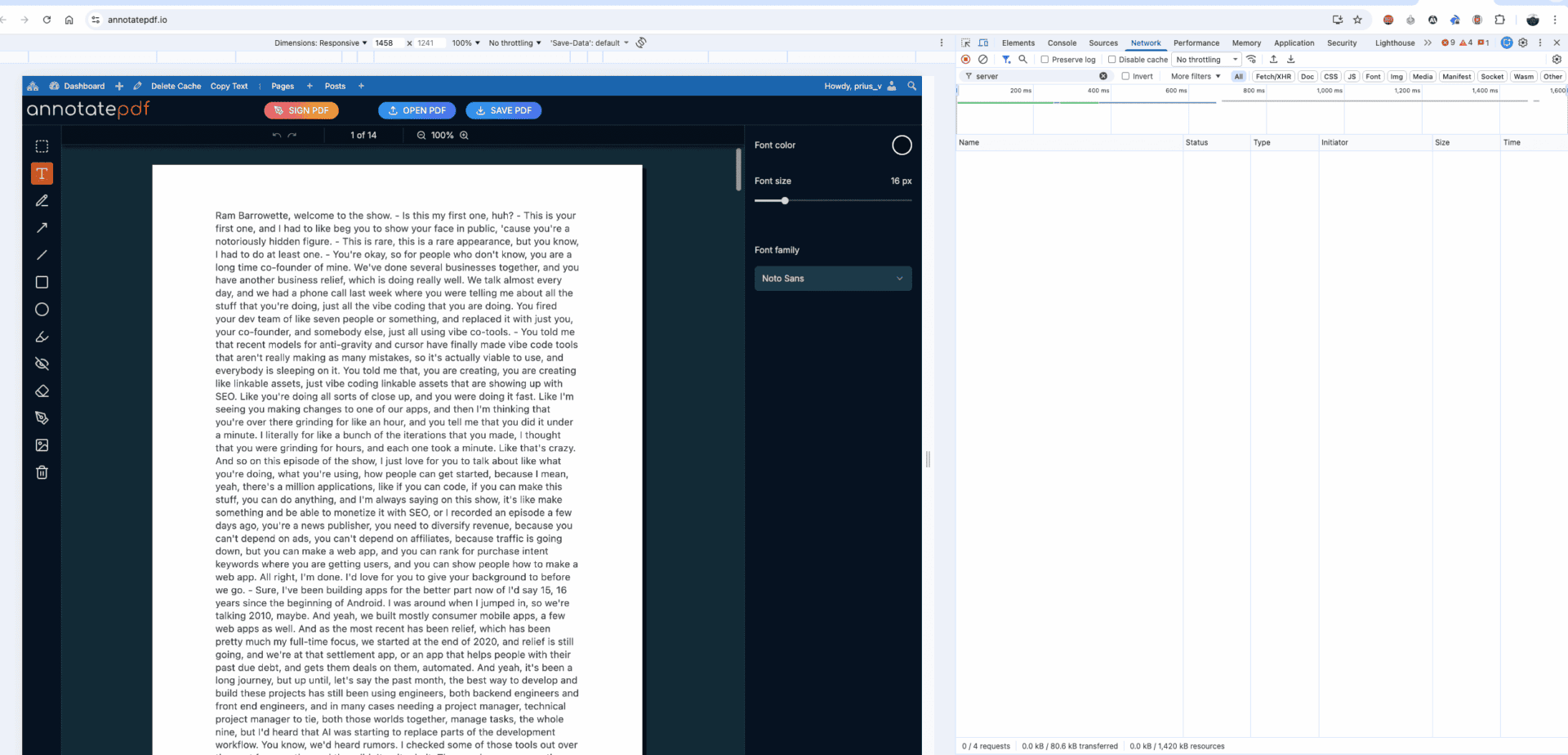
The test is simple: after loading the app, you can switch to airplane mode and continue editing, signing, and saving.
This is client-side PDF processing for lawyers.
It minimizes the attack surface, keeps chain of custody on the device, and aligns with common sense and confidentiality requirements.
The benefits compound.
Offline mode allows work in courthouse hallways or restricted networks. No account means no new credentials.
No server logs means nothing external to seize by court order.
A true serverless PDF tool enforces the same boundary as paper: the document stays with you.
Case Example: Secure Annotate PDF Tool for Lawyers with No Uploads
Annotate PDF positions itself as a serverless tool built for legal teams that need speed without risk.
It loads once and performs rendering, editing, flattening, and signing locally.
You can disconnect from the internet and continue working. No account, no cloud workspace, no “temporary processing.”
For lawyers under deadline, it works like trusted desktop software without installation.
In practice, it solves two tasks with almost zero friction:
permanent redaction and secure PDF signing.
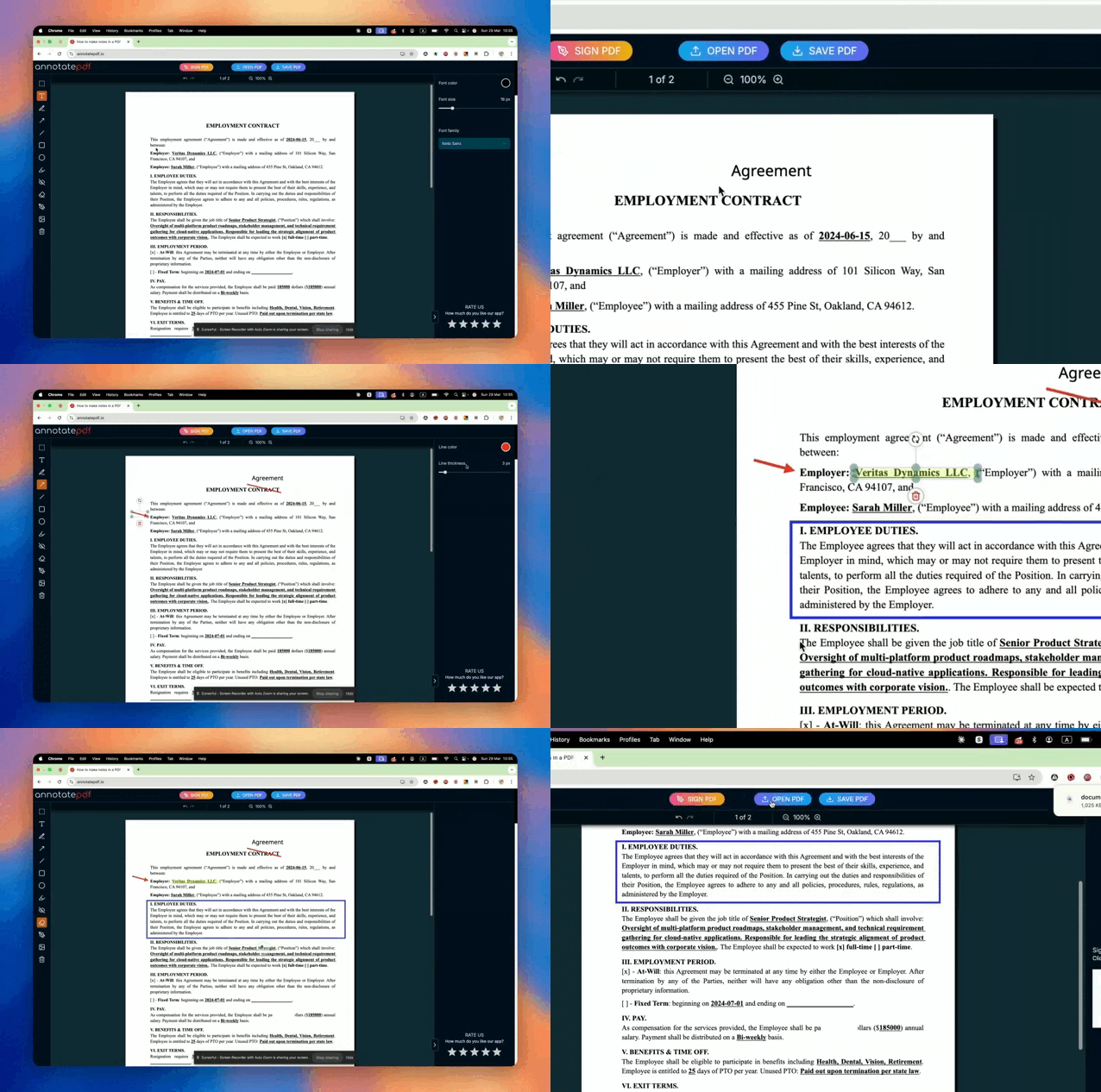
The goal is not only convenience, but preserving attorney-client privilege. Here is a compact workflow that can be adopted firm-wide:
- Open the editor, then disable Wi-Fi or enable airplane mode after loading to confirm there is no server dependency.
- Open the file locally (drag & drop). Confirm that no network requests occur.
- Edit content using vector redaction (not a black rectangle). Ensure the tool removes text and objects instead of merely hiding them.
- Add your signature. For a handwritten signature, draw it or use a scanned version. For attestation, enter your name and role.
- Save as a new file. Verify that text cannot be selected in redacted areas and hidden words cannot be found through search.
For overloaded teams, this is better than deploying a “secure” cloud workspace just to remove one Social Security number.
A secure PDF editor for lawyers should make the safe path the fastest path.
Governance Check: Choosing and Rolling Out a Client-Side Editor
Tools are only part of the story. To truly reduce risk, serverless practices must be built into policy, training, and procurement. Use this short checklist:
- Require no-upload tools for privileged or NDA-covered documents and explicitly prohibit cloud processing.
- Test offline mode during evaluation (load, disconnect network, complete a task).
- Document data flows. If a file leaves the device, reject the tool or restrict its use.
- Standardize redaction and post-save verification procedures, including metadata removal.
- Create an approved tools list and block server-side editors at the network level.
- Train staff on confidentiality boundaries and the difference between annotations and true redaction.
- Run regular audits: check for leaks, hidden layers, and access logs.
Implementation is straightforward. Security or KM teams can vet one tool, create a short guide, and add it to the corporate environment.
Replace vague instructions like “use a PDF editor” with a specific approved method.
Make the safe option the fastest one, just two clicks away on every workstation.
FAQ
- Do free online PDF editors store my files on their servers?
Usually yes. A typical free PDF editor processes files remotely for rendering, annotation, OCR, or compression. Check the browser Network tab: large uploads to /upload or /convert indicate server-side processing.
- Can uploading client documents to an online editor affect attorney-client privilege?
Yes, it can. Using a third-party platform with access to the content creates a risk of breaching confidentiality and NDAs. Use a serverless or offline editor instead.
- What is the difference between client-side and server-side PDF processing?
Client-side processing happens locally in a browser or app, and the file never leaves the device. Server-side processing uploads the file to vendor infrastructure.
- Is there a free PDF tool with no server-side processing?
Yes. Look for a tool that works fully offline after loading. Annotate PDF is one example: it performs editing and signing locally with no uploads.