How to delete drawn annotations in a PDF
There are several ways to do this. It all depends on your task. Below we cover all possible ways to delete drawn objects.
How to delete a specific object
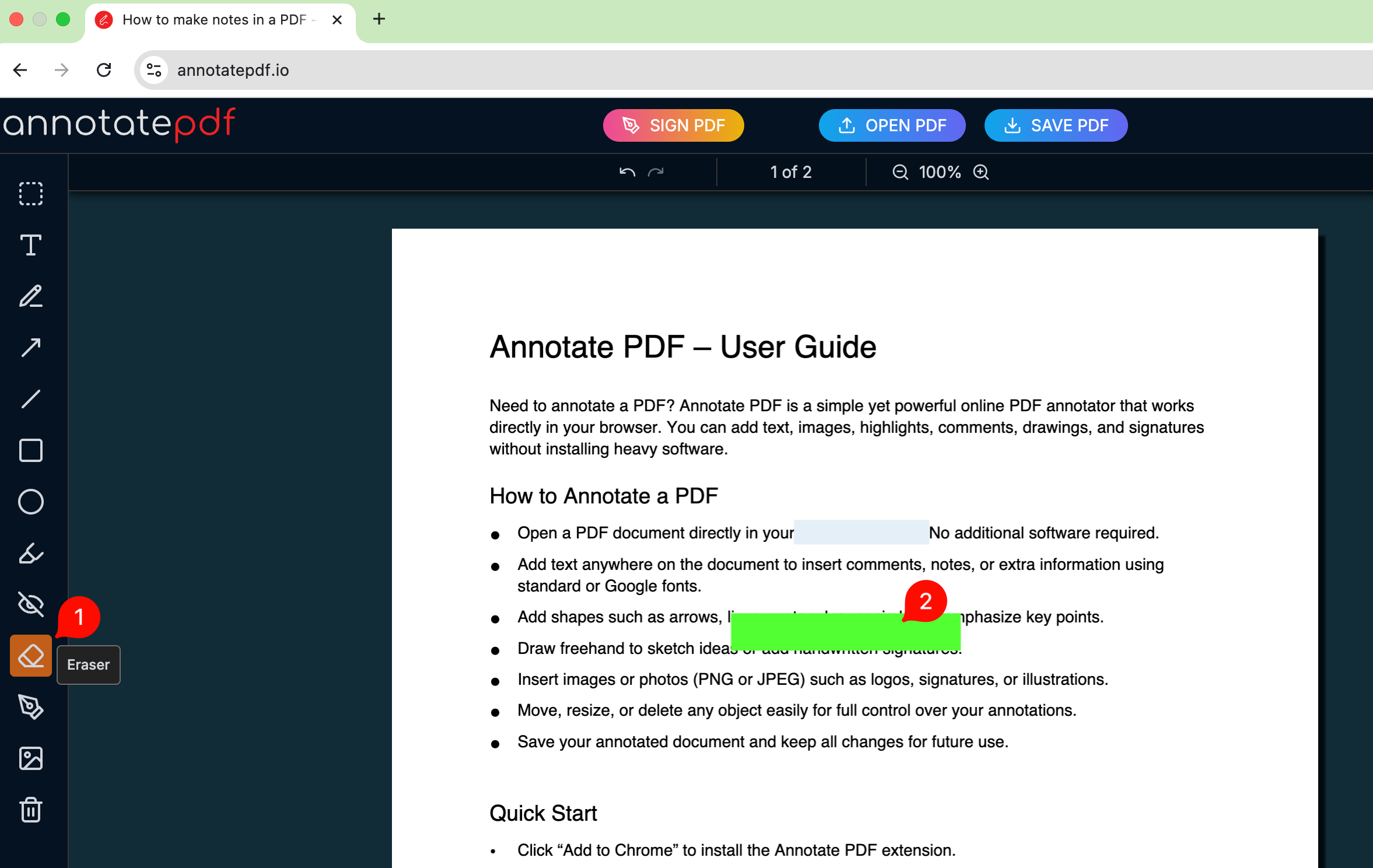
- Select the Eraser tool
- Click on the element you want to delete
How to delete multiple drawn objects
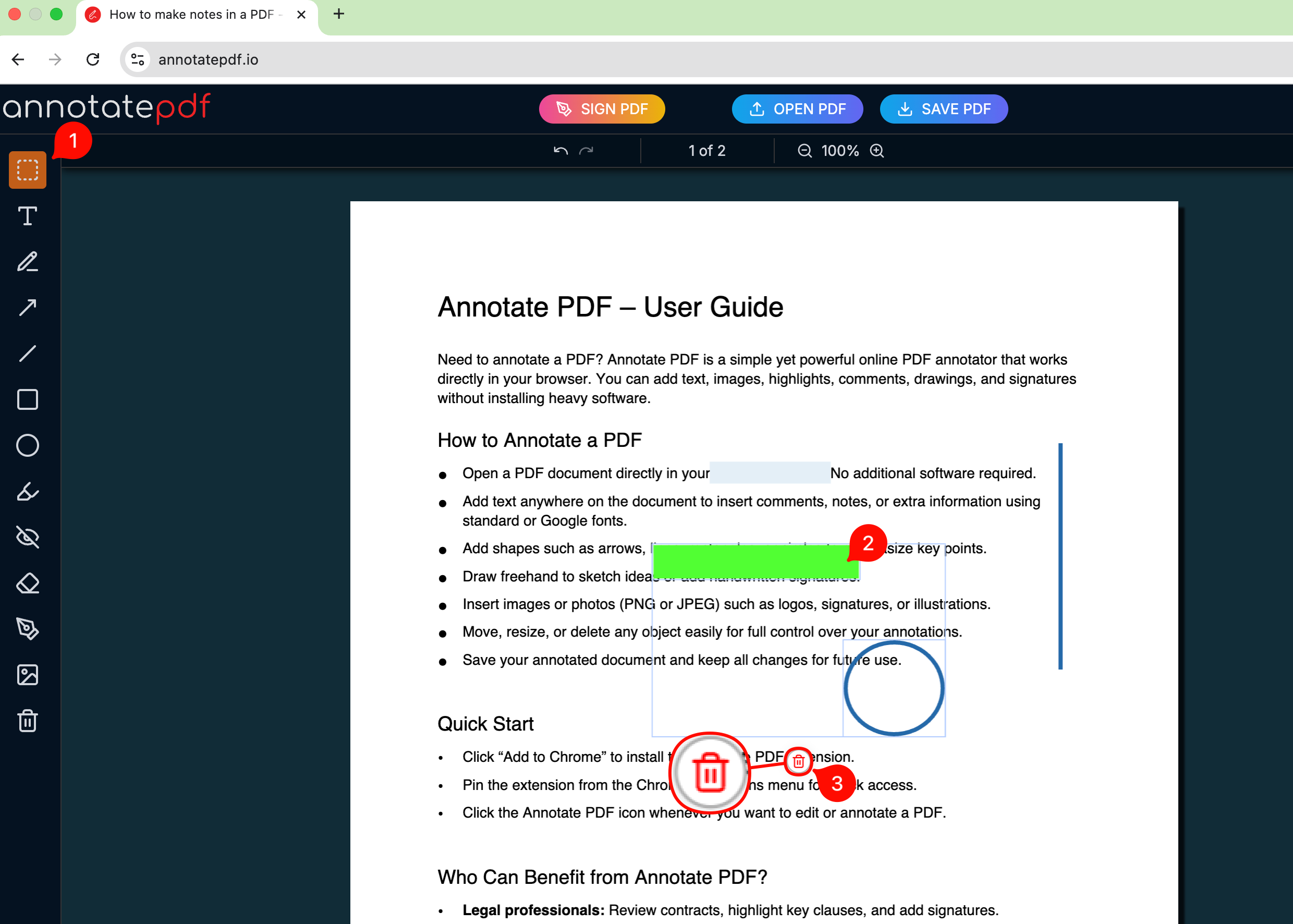
- Select the Selection tool
- Hold Shift and click several objects you want to delete
- Click the delete icon
How to clear all drawn elements at once
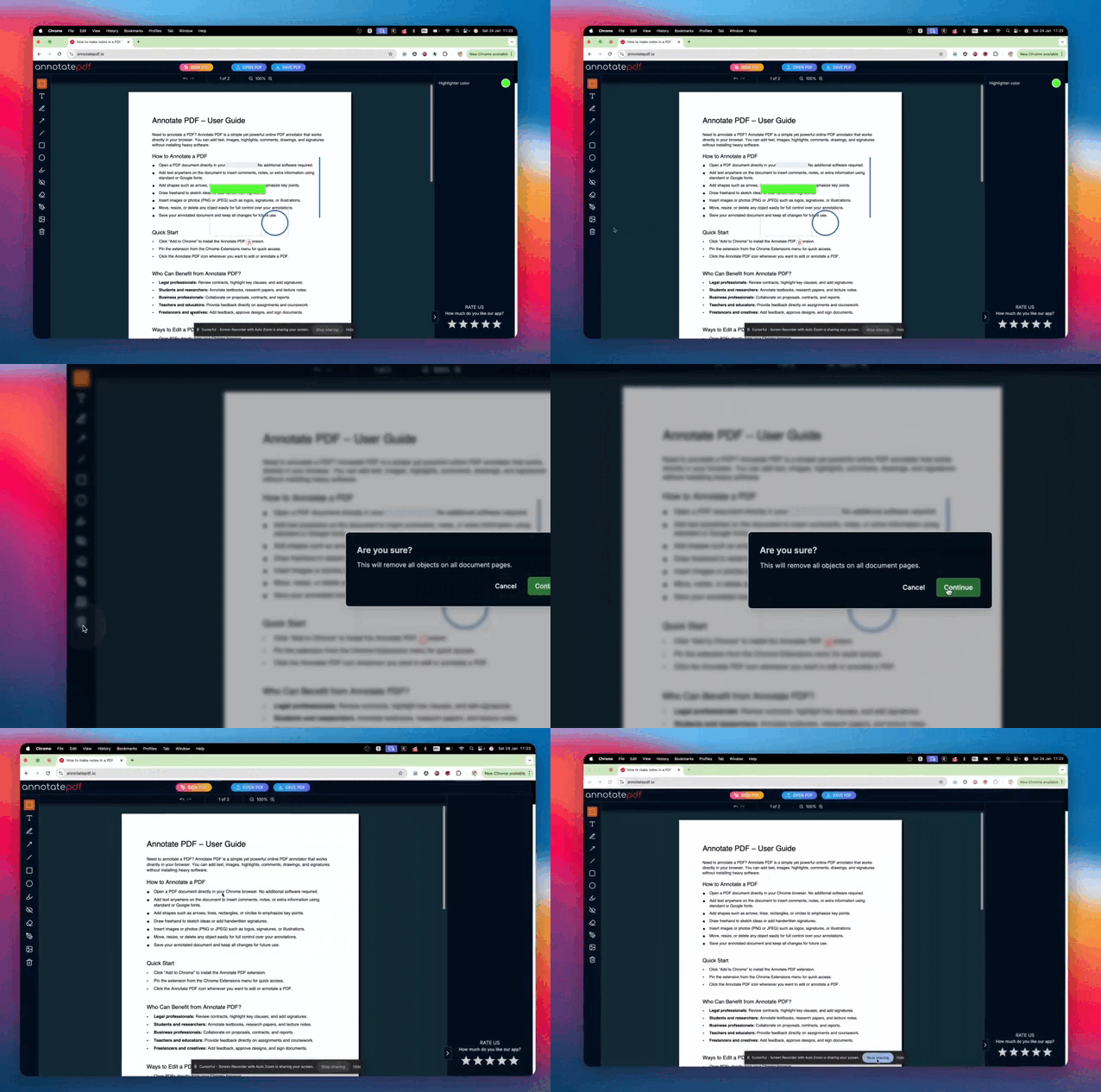
To do this, click the trash icon at the very bottom of the left toolbar and confirm the deletion.
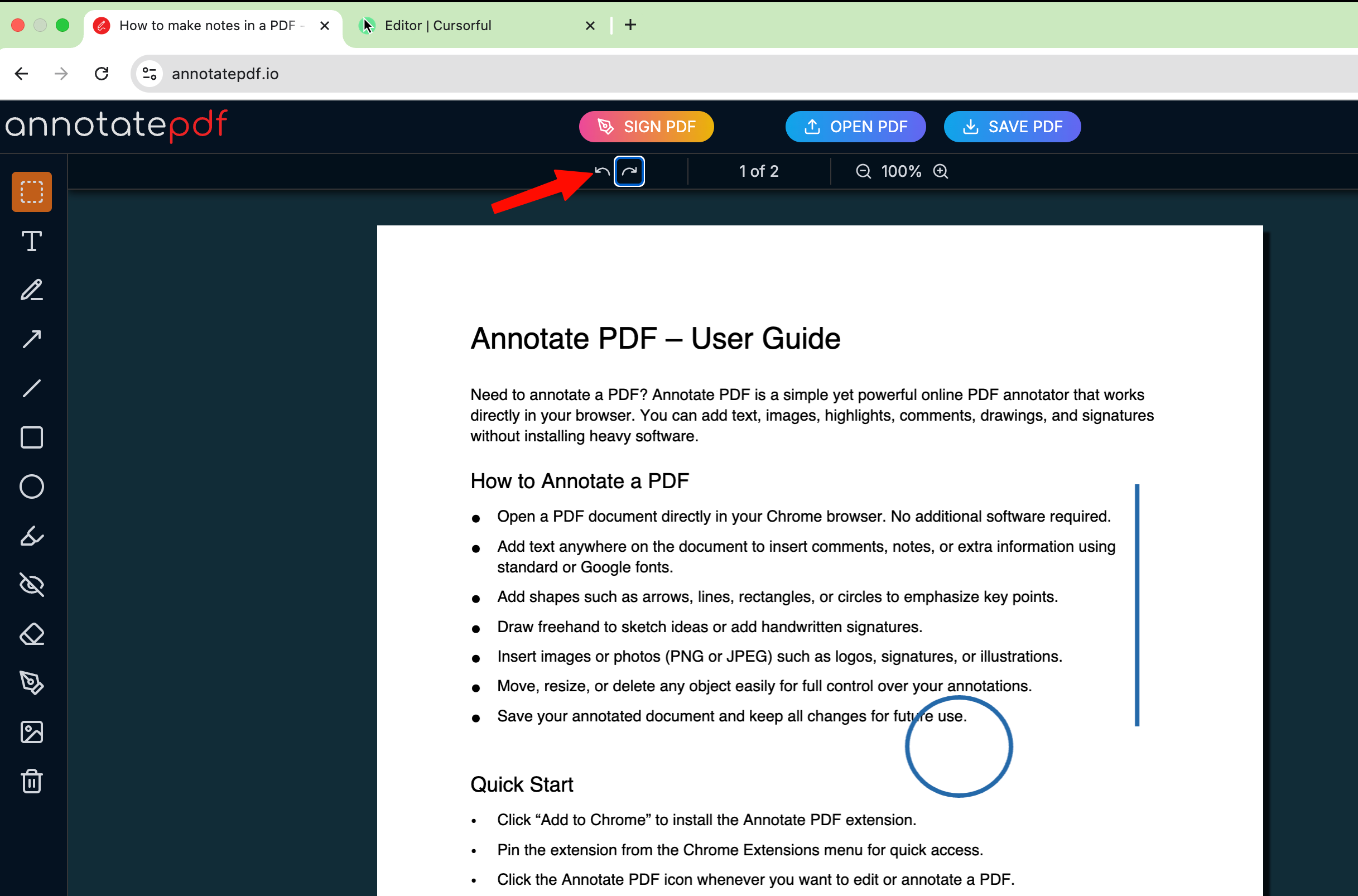
If you deleted something important, you can bring it back — just click the Undo icon in the top toolbar.